



Are you looking for ways to become more efficient while using your computer? Using keyboard shortcuts is an efficient way to quickly perform tasks on your computer. Knowing a few keyboard shortcuts can be one of the best ways to boost your productivity.
In this article, we will provide you with a list of 50 keyboard shortcut keys that you can use to speed up your workflow and get more done in less time. From the most commonly used shortcuts to those you may not know about.
What are keyboard shortcuts keys
Shortcut keys are combinations of two or more keys that, when pressed simultaneously, can be used to perform a variety of functions in different programs. Using shortcut keys can help you to increase productivity and save time while working on your computer.
Not only that, but learning and remembering shortcut keys can also make you look like a tech guru in front of your colleagues.
Benefits of using keyboard shortcuts
Keyboard shortcuts are essential tools for working faster on your computer and can save you a great deal of time. With just a few keystrokes, you can quickly access the tools and functions you need.
- Using keyboard shortcuts is a great way to streamline your workflow and quickly complete tasks.
- It allows you to move around the system without having to use a mouse or other input device.
- Keyboard shortcuts are available in almost all programs and applications, so you can benefit from their usage in a variety of ways.
- Not only can using keyboard shortcuts save you time, but they also allow you to quickly make changes to documents, adjust settings, and execute commands.
- If you are in a hurry and need to quickly find an application, a specific file, or a tool, keyboard shortcuts can get you there faster than ever before.
50 keyboard shortcuts keys and their functions
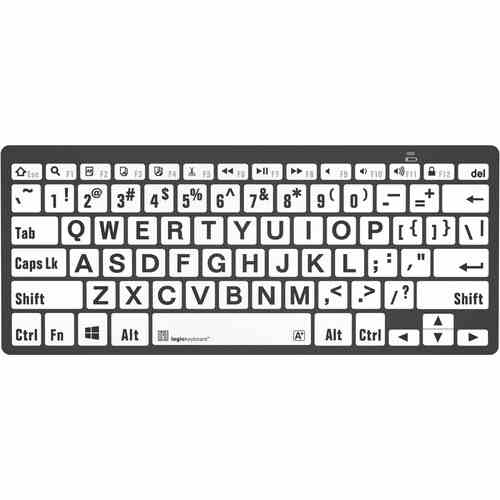
| Windows Shortcut | FUNCTIONS |
| CTRL+A | Select all the items in the current window |
| CTRL+C | Copy |
| CTRL+X | Cut |
| CTRL+V | Paste |
| CTRL+Z | Undo |
| CTRL+F | search on the current page |
| CTRL+P | Prints the current page |
| Windows KEY+L | Lock the computer |
| ALT+TAB | Switch between the running programs |
| F2 | Rename an object |
| SHIFT+DELETE | Deletes an item immediately (permanently) without moving it into the Recycle Bin. |
| Windows KEY+E | Opens Windows Explorer |
| Windows KEY+D | Minimizes all open windows and displays the desktop & vice versa |
| ALT+F4 | Quit the current program |
| ALT+F4 on Desktop | Shows an option to Restart, Shutdown or Signout |
| ALT+ SHIFT+TAB | Switch between the running programs in the reverse order |
| CTRL+TAB | Switch to the next child window (tab) of a current program, such as the tabs in our web browser |
| CTRL+ SHIFT+TAB | will move through tabs in reverse order. |
| CTRL+ drag a file | To make a copy |
| CTRL+SHIFT + drag a file | To Create shortcuts |
| BACKSPACE | Switch to the parent folder |
| CTRL+ click on the link | To open the link in new tab |
| CTRL+L | Select the current path of the file on Windows Explorer or on Browser |
| CTRL+F4 or CTRL+W | Closes the current window (tab) of a current program |
| CTRL+T | Open a new Tab in Browser |
| CTRL + SHIFT+T | To restore previous tabs in the browser |
| Type domain name and PRESS CTRL+ENTER | Completion of .com address in browser Eg: Type youtube and CTRL+ENTER will load YouTube website. |
| CTRL+SHIFT+ESC | Open Windows Task Manager |
| CTRL+ALT+DELETE | show the menu of Lock, Switch User, Sign Out, Task Manager |
| CTRL+ plus (+) | Expands (Zoom IN). |
| CTRL+ minus (-) | Collapses (Zoom Out). |
| ALT+ENTER | Open the properties for the selected object |
| Windows KEY+BREAK | System Properties dialog box |
| CTRL+L | Select the current path of the file on Windows Explorer or on Browser |
| CTRL+SHIFT+ESC | Open Windows Task Manager |
| CTRL+ALT+DELETE | show the menu of Lock, Switch User, Sign Out, Task Manager |
| ALT or F10 THEN UNDERLINED Letter In Menu | Opens the particular menu |
| Windows KEY+M | Minimize all |
| Windows Key+ SHIFT+ M | Undo minimize all |
| Windows Key+ P | Projection Screen (PROJECT) |
| Windows Key+ Arrow key | To manage a number of the window in the screen (to divide screen) |
| Alt + Space Bar | Opens menu which moves, minimize, maximize, close the current windows. |
| F4 on Window Explorer | Selects the Go To A Different Folder box and moves down the entries in the box |
| Left ALT+left SHIFT+NUM LOCK | Toggles MouseKeys on and off on Numeric Keypad |
| Windows KEY+R (Run dialog box) & type cmd | command prompt |
| Windows KEY+R (Run dialog box) & type “OSK“ | On-screen Keyboard |
| Windows KEY+R (Run dialog box) & type mstsc | Remote Desktop Connection |
| Windows KEY+R (Run dialog box) & type “appwiz.cpl” | Open “Uninstall” or “Change a program“ |
| Windows KEY+A | Opens Action Center on Right of the screen on Windows10 |
| Windows KEY+W | Opens Window Ink Work-space on Right of the screen on Windows10 |
| Windows KEY+I | Opens Windows Setting on Windows10 |
Conclusion
Using keyboard shortcuts is a great way to save time and increase your productivity. We hope that this list of 50 keyboard shortcut keys has given you some ideas of how you can use them to your advantage.
With so many combinations available, there is sure to be a shortcut key for almost any task. It may take some time to get used to using these keyboard shortcuts, but the time and effort invested will be worth it in the end.